NCR Counterpoint Management Console:
Object Explorer
Located on the left-hand side of the NCR Counterpoint Management Console window, the Object Explorer serves as the primary method for navigating to specific servers, stores, and workstations that you want to manage.
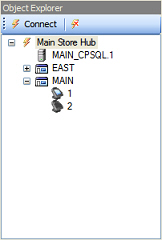 Click the
  button (or select Connect to Server from the File menu) to connect to a NCR Counterpoint server.
 In a single-site environment, you will only be able to connect to a single server (i.e., your Primary server). In a Multi-Site environment, you can connect to your Hub server or to any of your Remote site servers.
Click the  button (or select Disconnect from Server form the File menu) to disconnect from the selected server and clear all information related to that server.
Click the  icon next to a server or store to expand the tree and access store or station information.
Click the  icon next to a server, store, or workstation to collapse that branch of the Object Explorer tree.
The icons that appear to the left of each workstation indicate its current status:
 This icon indicates that the workstation is not registered.
 This icon indicates that the workstation is registered and online.
 This icon indicates that the workstation is registered and currently offline (i.e., it has not communicated with its server in the last 10 minutes).
Select the  Hub server,
  site server,
  store, or
  workstation you want to manage to display the corresponding view.