NCR Counterpoint Management Console:
Site Server view
When you select a site server from the Object Explorer, the NCR Counterpoint Management Console displays a series of tabs that allow you to review important information about the server, monitor CPServices communication activity between the server and the Hub, and initiate various tasks.
The Site Server view includes the following tabs:
Summary
The  Summary tab displays summary information about the selected site server, including the date and time of its registration, the date and time of its Last Connection to the server, and its System name.
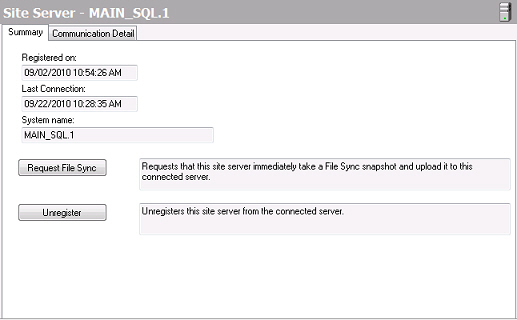
The Summary tab also allows you to perform the following tasks for the site server:
Request File Sync
Click this button to tale a snapshot of the site server's local top-level directory and send it to the Hub server. This process determines whether top-level file changes (e.g,. new data dictionary settings, custom reports, updated item or customer images, and so forth) need to be sent from the Hub to the site server via File Sync.
Unregister
Click this button to disassociate the site server from the Hub server. When you "un-register" a site server, it will no longer exchange configuration data with the Hub server.
Communication Detail
The Communication Detail tab displays detailed information about the packages that have been sent between the selected site server and the Hub server via Data Sync (i.e., configuration changes) and File Sync (i.e., top-level file changes).
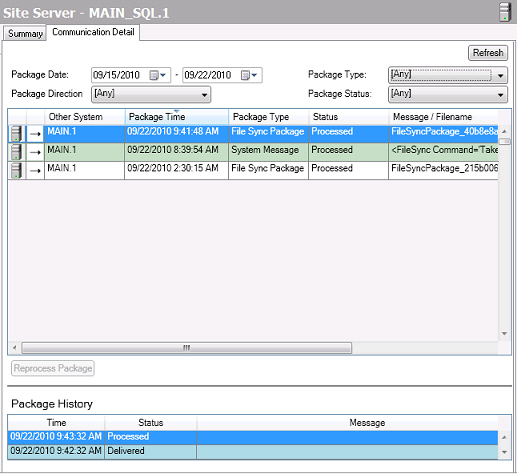
You can specify a Package Date range for the Communication Detail tab by selecting a start date and end date, and then clicking the Refresh button.
To filter the packages that appear on the Communication Detail tab, select a Package Direction (i.e., Inbound or Outbound), Package Type (i.e., Data Sync, File Sync, or System Message), and/or one of the following Package Status options:
-
Delivered
-
Delivery Error
-
No Packages Available
-
Partially Received
-
Pending Delivery
-
Pending File Retrieval
-
Processed
-
Processing Error
-
Received
-
Retrieval Error
For packages with errors, you can click the Reprocess Package button to attempt to send the package again.
The Package History area displays detailed communication history for the selected package, including each Status change and the corresponding Message.