NCR Counterpoint Management Console:
Store view
When you select a store from the Object Explorer, the NCR Counterpoint Management Console displays a series of tabs that allow you to initiate various tasks for all of the offline workstations that are registered to that store and monitor the status of offline mode drawer session data that has been uploaded to the server from the corresponding offline workstations.
The Store view includes the following tabs:
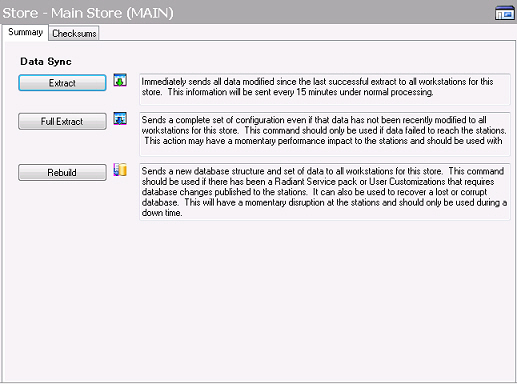
The  Summary tab allows you to perform various tasks for all of the workstations that are registered to the selected store via the following buttons:
Extract
Click this button to extract changed data from the server into an XML file and send the file to all of the offline workstations that are registered to the selected store, which will be populated with the relevant data.
Full extract
Click this button to extract a complete set of configuration data from the server into an XML file and send the file to all of the offline workstation that are registered to the selected store, which will be populated with the relevant data.
Rebuild
Click this button to build an initialization package on the server and send it to the selected store. An initialization package contains sufficient data to allow a complete database to be created and populated with a complete configuration data extraction on each workstation that is registered to the selected store, rebuilding each offline database.
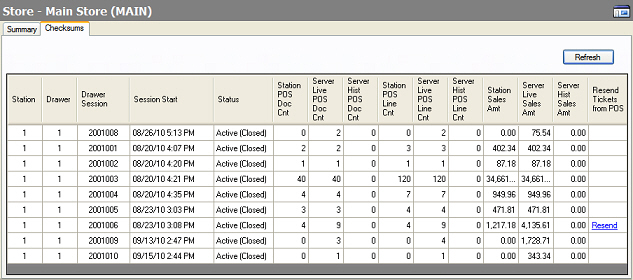
The Checksums tab allows you to monitor the status of offline mode drawer sessions for the offline workstations that are registered to the selected server and to verify that all of the tickets in each session have been successfully uploaded to the server.
This tab displays the number of Point of Sale documents (i.e., tickets and voided tickets) in each offline mode drawer session, along with the number of ticket lines those documents include. For each drawer session, this tab also indicates the number of posted (i.e., Hist) and unposted (i.e., Live) documents and lines that have been uploaded to the server via CPServices. Finally, the tab displays the total sale amount for each drawer session at the station and at the server.
Discrepancies between the drawer session counts at a station and the server indicate that one or more tickets were not extracted successfully by the server. For such drawer sessions, you can click the Resend link in the Resend Tickets from POS column to immediately upload the remaining tickets from the selected station to the server.