Sending a report to an e-mail address
When you have defined the SMTP host name for your e-mail system and configured the necessary company and security settings, authorized users will see the  E-mail button on all report parameter windows, alongside the Print and Preview buttons, allowing them to send reports to customers, vendors, or other users.
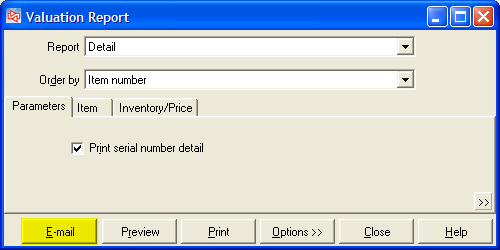
Click this button to display the E-mail Parameters dialog.
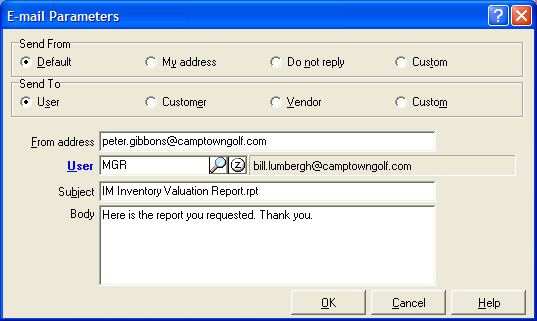
To specify the recipient for the report, select User, Customer, or Vendor from the Send To options, and then enter or look up a user, customer, or vendor record with a valid e-mail address. You can also select the or select Custom and enter a one-time To address for the report.
If no e-mail address (i.e., Email 1) is on file for the recipient, you can add the necessary e-mail address or create a new user, customer, or vendor record with an e-mail address "on the fly."
If you want to send the report to an e-mail address that is not associated with a user, customer, or vendor, select Custom from the Send To options and enter a one-time To address to which you want to send the report.
 You can select the Custom option only if the Allow e-mailing non-system address check box is selected for your system security code.
The E-mail Parameters dialog also allows you to choose the From address for the report message by selecting one of the following Send From options:
-
Default - Select this option to use the Email 1 value on the Contacts tab of the Company window as the From address.
-
My address - Select this option to use the Email 1 value for the current user— defined on the Contacts tab of the Users window (Setup > System > Users)— as the From address.
-
Do not reply - Select this option to use the default "do not reply" address for your company (e.g., do-not-reply@mycompany.com) as the From address.
-
Custom - Select this option and then enter a From address to send the report from a different e-mail address.
You can select the Custom option only if the Allow e-mailing non-system address check box is selected for your system security code.
The report file name is the default Subject for the report message, while the default Body text is the E-mail body specified for your company on the Other tab of the Company window. You can edit the default values, if you wish.
When you have chosen the recipient for the report, click the OK button to send the report using the From address, Subject, and Body specified on the E-mail Parameters dialog.
Reports are sent as PDF files.