Radiant receipts: Receipt Editor
Control Properties
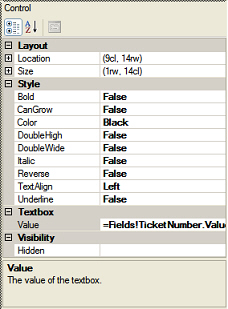 This area of the Receipt Editor window allows you to modify the properties of a data field or other control, including the Layout, Style, and Visibility settings, as well as its Value (i.e., a literal text string, database field, or expression).
You can modify the Location (i.e., the Left and Top position) and the Size (i.e., the Height and Width) of a control by editing the corresponding fields directly.
The available Style settings determine how the text will appear on the printed form, including whether the text is bold, italicized, or underlined and the alignment of the text, as well as whether the control can grow (i.e., CanGrow) as needed to fit the value being printed.
You can make the Visibility of a control conditional by clicking the  button next to the Hidden field and defining a conditional expression. Counterpoint will evaluate this expression to determine whether the control is hidden when the form is printed.
To modify a control's Value, do one of the following:
Enter a literal string in the corresponding field.
Enter =Fields!FieldName.Value in the corresponding field to assign a database field to the control (where FieldName is the name of the field).
Click the button next to the Value field and define an expression to determine the value that the control will print.