Device Management:
Defining line display messages
The  Line Display Message Setsdialog, which is accessible from theDevice Management window, allows you to define message sets for line display devices, including 2x20 pole displays, PIN pads, and payment terminals.
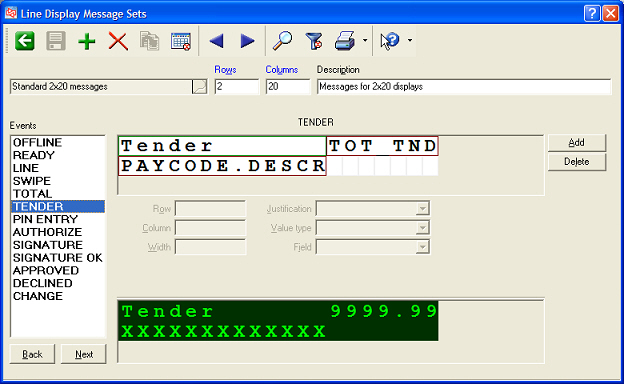
A message set includes one or more messages, each of which corresponds to an event that tirggers the display of the corresponding message. For example, the READY event displays its message when the POS terminal is waiting to start a ticket (e.g., Welcome to Camptown Sports), while the TOTAL event displays its message when a ticket has been totalled, but before a payment has been entered.
You can assign a different message set to each line display device you configure, allowing you to display one set of messages on a 2x20 display and another set of messages on a PIN pad or payment terminal.
 Counterpoint includes a pre-defined message set for each certified line display, PIN pad, and payment terminal. These message sets include appropriate messages for the events that are typically displayed on each device.
Follow these steps to configure messages for your line display devices:
-
Select Setup > Point of Sale > Devices to display the Device Management window.
-
From the
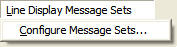
Line Display Message Sets menu, select Configure Message Sets to display the Line Display Message Sets dialog. -
Enter or look up the name of the message set you want to create or edit.
-
Specify the number of Rows and Columns that are available to display text on the device for which you are defining messages.
-
Enter a Description for the message set.
-
From the Events list, select the event for which you want to define a message (e.g., READY, LINE, SWIPE, and so forth), and then add or edit the message for that event.
You can Add or Delete message boxes, drag them into the appropriate position in the message layout area, and re-size them to fit into the available rows and columns.
You can include a Text string, Field values or Label field, or a date/time Macro in each line display message box.
Repeat this step for each message you want to define.
-
Click the
 button to save your message set.
Repeat steps 3 through 7 for each message set you want to create or edit.
-
Close the Line Display Message Sets dialog to return to the Device Management window.