Configuring Counterpoint to send statements via e-mail
Follow these steps to configure Counterpoint to send A/R statements via e-mail:
-
Select Setup > Customers > Control to display the Customer Control window and click the A/R Processing tab.
-
Select the Allow e-mail statements check box.
-
In the E-mail subject field, enter the subject you want to use by default for e-mailed A/R statements (e.g., Your statement from Camptown Golf).
-
In the E-mail body field, enter the body text you want to use by default for statements sent via e-mail (e.g., Hello %CUST_NAM%. Your statement is attached. Thank you for your business!).

 Counterpoint will replace %CUST_NAM% with each customer's name.
-
Save your changes and close the Customer Control window.
-
Select Customers > Customers to display the Customers window.
-
Enter or look up the Customer # for an A/R customer, and then enter the customer's primary e-mail address in the Email 1 field on the Main tab.
-
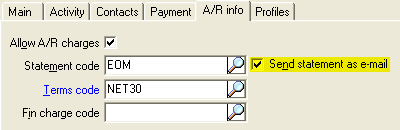
Click the A/R info tab and select the Send statement as e-mail check box.
-
Save the customer record.
Repeat steps 7 through 9 for each of your A/R customers.